Teach like it's a broadcast, not a webcam.

Students stay when lessons look alive. VisionMixer is a virtual camera for teachers, tutors and trainers on the Mac: build lesson scenes with slides, a whiteboard and your camera, pick “VisionMixer” as your camera in your school's Zoom, Meet or Teams, and switch scenes as you teach.

For live classes · tutoring · training · course recording · office hours

ZoomGoogle MeetMicrosoft Teams Webex+ any app with a camera picker

A produced lesson in three steps

1

Build your lesson scenes

Slides full-screen with you in the corner. A whiteboard scene for working through problems. A just-you scene for discussion. Design them once, reuse them all term.

2

Pick the camera

In your school's Zoom, Meet or Teams, choose VisionMixer from the camera menu, exactly like picking a webcam.

3

Switch as you teach

Cut between scenes with clicks, hotkeys, or your phone as a remote. Slides, whiteboard, just you — the class sees a produced lesson.

Slides + you

You and your material, in one frame

The fastest way to lose a class online is to disappear behind a screen share. VisionMixer lets you teach online with slides and camera together: share slides, documents, apps or a browser tab with yourself composited over them — AI person segmentation cuts you out of your real background, no green screen. Students watch you teach, not an empty screen.

  • Slides full-screen with you in the corner, or side by side
  • No green screen — AI segmentation works on any camera
  • Multiple cameras for demonstrations: a second camera on your desk, hands, instrument or experiment
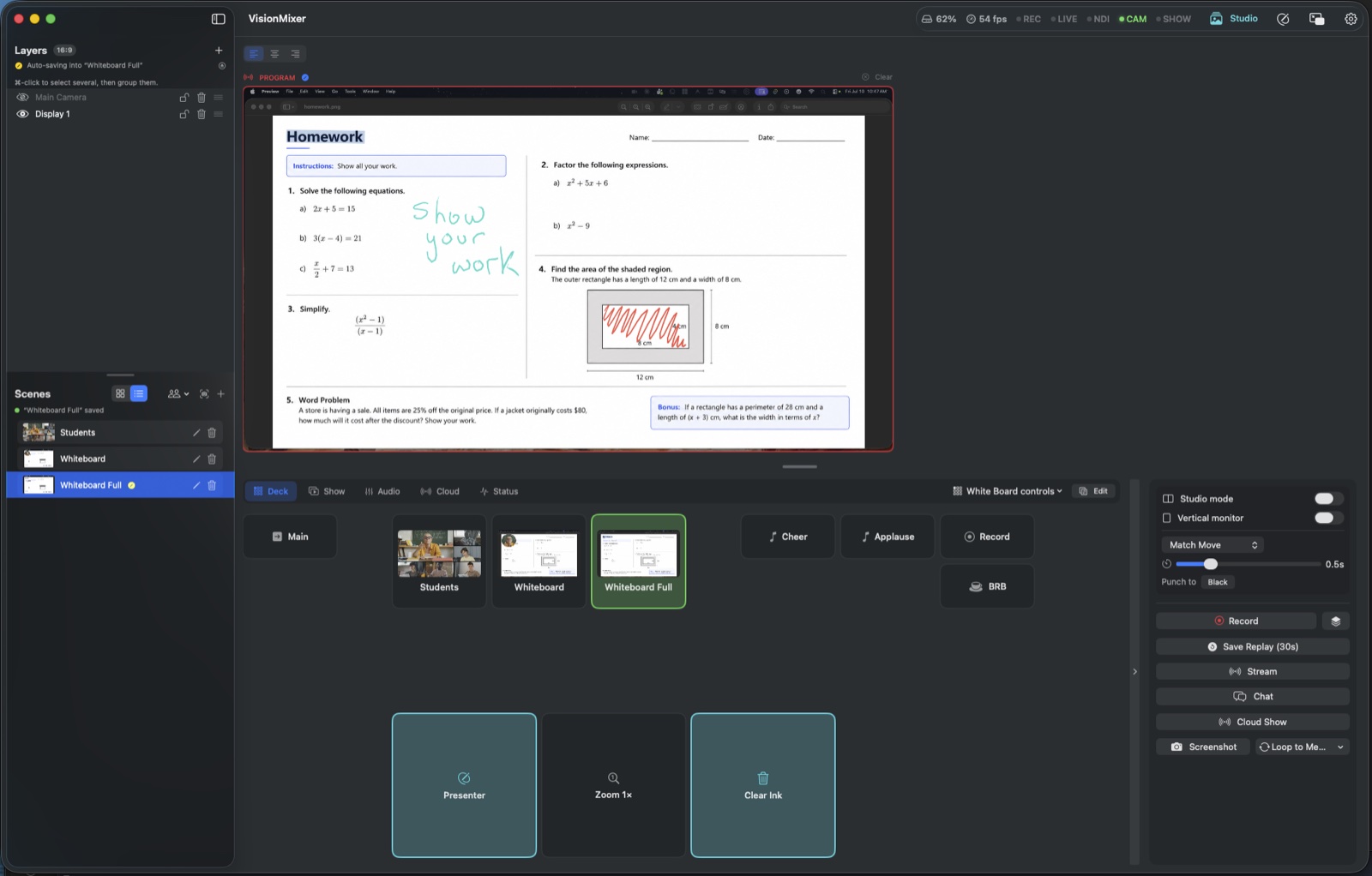
VisionMixer during a lesson: a homework worksheet live on Program with hand-drawn ink, lesson scenes named Students and Whiteboard, and a deck with whiteboard controls, cheer and applause sound pads, and Record.

Annotation & focus

Point at what matters

Annotate a shared screen in Zoom, Meet or Teams while your students watch: draw with a pen or highlighter over anything you share, drop a laser dot on the line you're reading, spotlight one region, or zoom into the detail you're explaining — all live.

  • Pen and highlighter ink over slides, documents and web pages
  • Laser dot and spotlight to hold attention on one region
  • Zoom into the detail while you talk it through
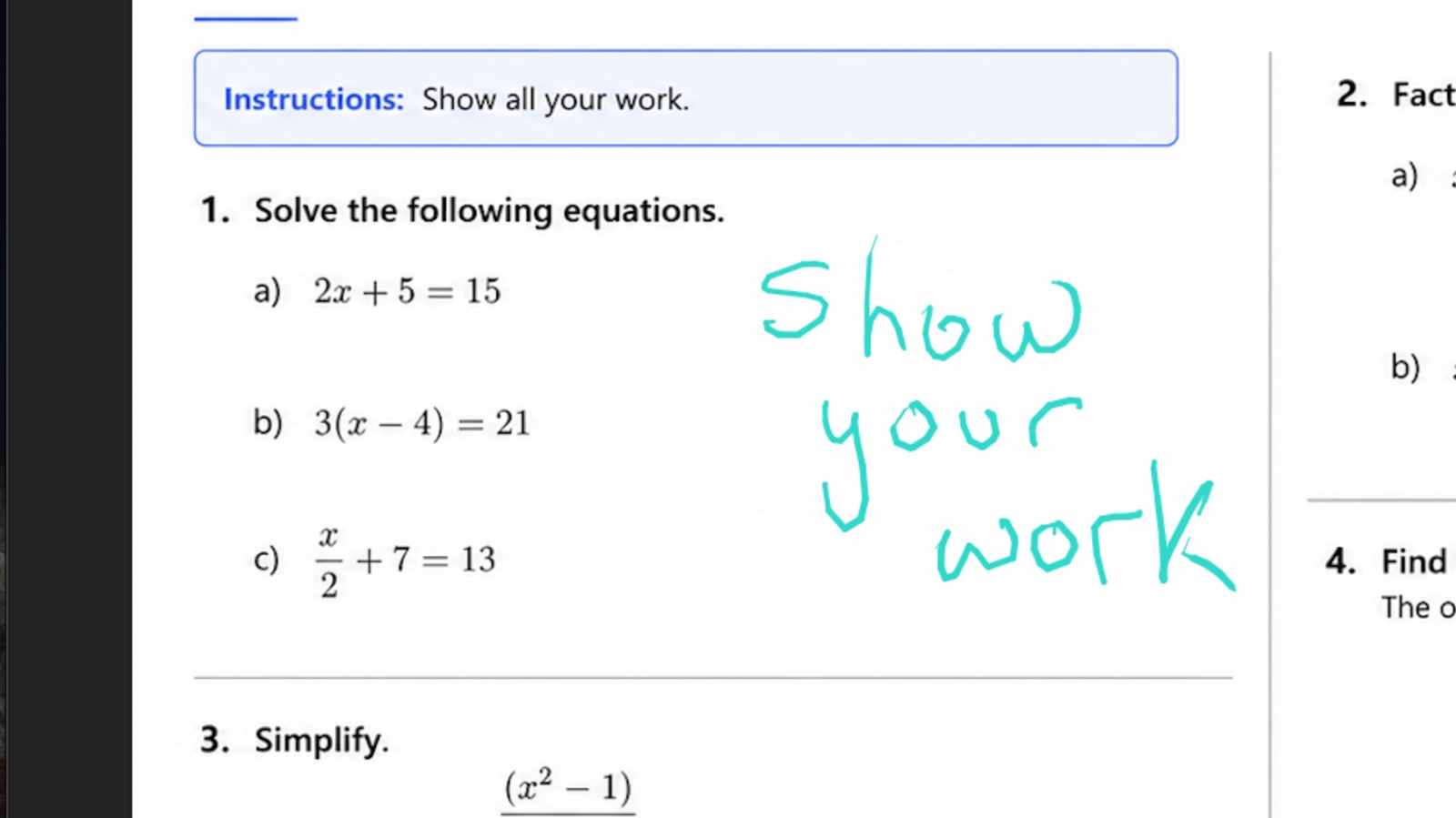
Zoomed into a homework worksheet mid-lesson, with “Show your work” hand-written in teal ink over the page.

Recording & cues

Every lesson, captured

Record lessons on your Mac with crash-safe capture: a crash never eats the file recorded so far, and pause keeps breaks out of the recording. Fire countdown timers and title cards as cues, and use soundboard stingers for quizzes and reveals. Guest speakers can join from any browser with a code via Cloud Shows (optional add-on).

  • Crash-safe recording with pause — share it with absent students
  • Countdown timers and title cards as lesson cues
  • Soundboard stingers for quizzes and reveals
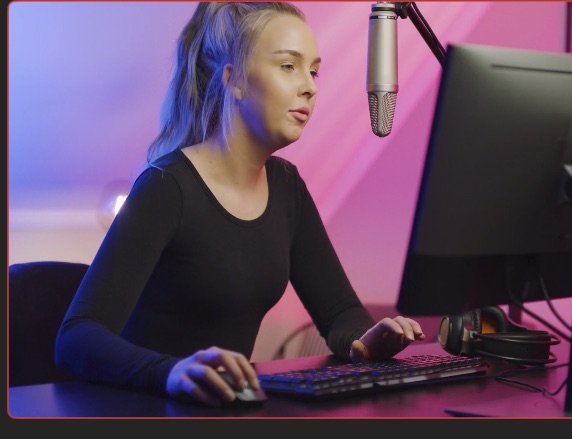
A polished VisionMixer program output — the produced show that goes to your virtual camera, streams and vertical feed.

Made for how you'll use it

Virtual cameraHow the produced program becomes your camera in any Mac app. AI creationGenerate overlays, images, video and sound without leaving the app. The StudioDesign cues, graphics and custom stinger transitions. Business & teamsBranded, professional presence in every meeting and webinar.

Teaching questions, answered

Does it work with my school's platform?

Yes, if it runs on a Mac and lets you choose a camera — Zoom, Google Meet, Microsoft Teams and Webex all do, in the browser or their desktop apps. VisionMixer shows up in the camera list like any webcam; pick it and your lesson scenes are your camera.

Do students need to install anything?

No. Students just see your camera in the meeting, exactly as they would a webcam. Everything — scenes, annotation, switching — happens on your Mac.

Can I record lessons for absent students?

Yes. VisionMixer records the produced lesson on your Mac with crash-safe capture — a crash never eats the file recorded so far — and you can pause and resume mid-lesson, so breaks never make it into the file.

Do I need a green screen or a studio?

No. AI person segmentation cuts you out of your real background on any camera, so you can sit over your slides from a normal room. Background blur is there too, and classic chroma key if you do have a green screen.

What does it cost?

VisionMixer is $99 once, with a 14-day free trial (trial output carries a small watermark). No subscription is needed for the teaching features — scenes, virtual camera, annotation and recording. Remote guests via Cloud Shows are an optional monthly add-on.

Can a guest speaker join my lesson?

Yes — with Cloud Shows, an optional add-on, guests join free from any browser with a code. No account, no install; they appear as a source you can place in any scene.

Your next lesson could look alive.

Download VisionMixer and teach with a better camera.

Download for macOS